Medusa Extend · Case study
Managing consignment with Medusa
Products entrusted to stores. Sales, returns, stock discrepancies. How do you organise a commercial consignment system in Medusa?
A store wants to sell a brand's products without buying them upfront. The brand therefore entrusts products to it, retaining ownership until they are sold. The store pays the brand for products sold, according to their agreement. Unsold items can be sent back to the brand: this is the principle of consignment.
The principle of consignment
The brand entrusts products to the store; the store reports its sales to the brand.
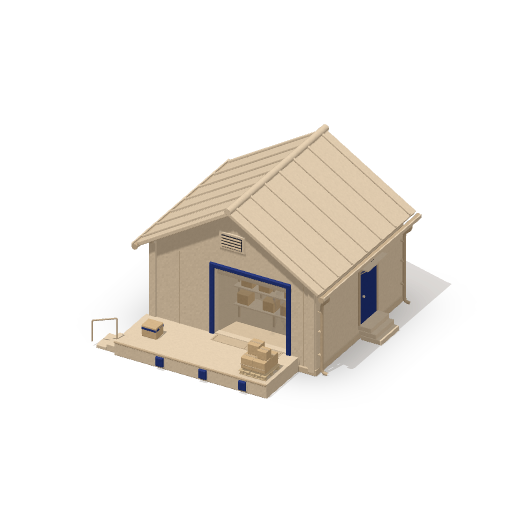
Brand
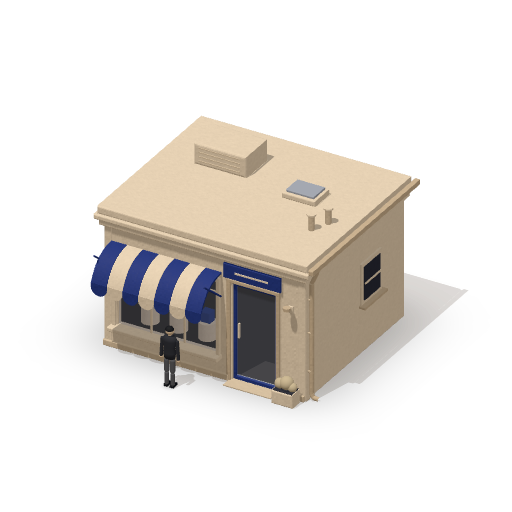
Store
To manage this activity with several stores, the tool in Medusa must allow the brand to:
- prepare a consignment request with each store, revising references and quantities, then approve or cancel it;
- track shipments and their receipt, along with quantities in transit and those held at each store;
- record sales reports submitted by stores for each period;
- organise and track returns of unsold items, even when they combine products received in several shipments;
- keep stock counts submitted by stores, compare them with expected stock and examine discrepancies before approving any adjustment.
This tracking lets the brand view each store's position and get an overview for managing its consignment business.
Building on Medusa's modules
Medusa is a commerce engine organised into ready-to-use modules. Each module manages the information and operations of a commerce domain. Rather than rewriting catalogue, stock and logistics management, we build our system on these modules.
Our consignment system will rely on five of these modules:
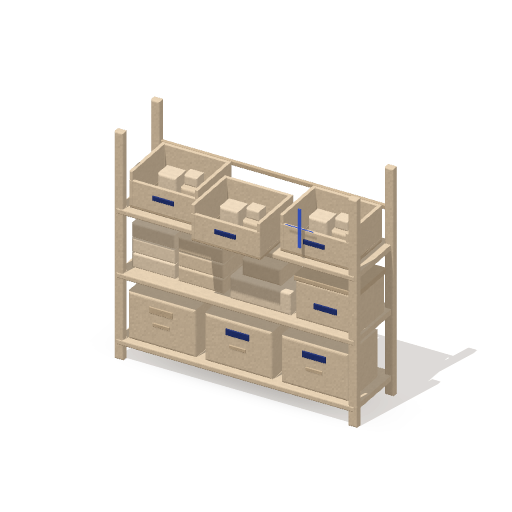
- Product manages the catalogue. Each variant corresponds to a reference that the brand can ship, sell or count.
- Stock Location records storage locations, including the brand's warehouse and the location of each partner store.
- Inventory tracks the stock quantity and reserved quantities for each reference and location. For a store, the recorded stock quantity forms its expected stock: what it should hold based on shipments, sales and returns already entered.
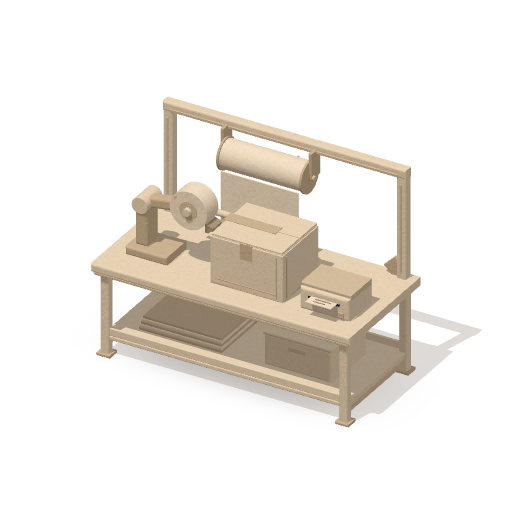
- Fulfillment records shipments, the references and quantities they contain, and preparation, dispatch and delivery dates.
- Order records sales, here those reported by stores.
Modules already available
-
Product
catalogue
-
Stock Location
locations
-
Inventory
quantities
-
Fulfillment
shipments
-
Order
sales
Building a consignment module
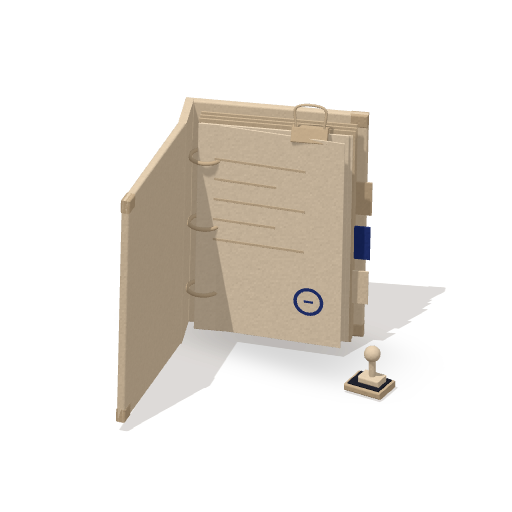
The native modules manage the catalogue, stock, shipments and sales. Consignment also produces documents exchanged between the brand and each store: agreements, declarations and counts. These consignment-specific documents have no dedicated model in Medusa. We need to keep four types of documents:
- Consignment requests (Requests): a store, the lines proposed and then agreed for each reference, successive revisions and the request's status.
- Sales reports (Sales Reports): a store, a period, a reporting date, reported lines with quantities and amounts, and the report's processing status.
- Returns of unsold items (Returns): an overall document for a store, which can combine products received in several shipments, with reported and then received lines, its date and its status.
- Stock counts (Stock Counts): a dated count submitted by the store, counted quantities, the initial discrepancy with expected stock, then the explanations and decision retained.
These documents preserve what was agreed or reported. Shipments stay in Fulfillment, with their own dates, and approved sales are recorded in Order.
We therefore create a consignment module bringing these four sets together. Its entities are the models that record documents and their lines, along with revisions where history matters.
One module, four sets of data
Consignment module
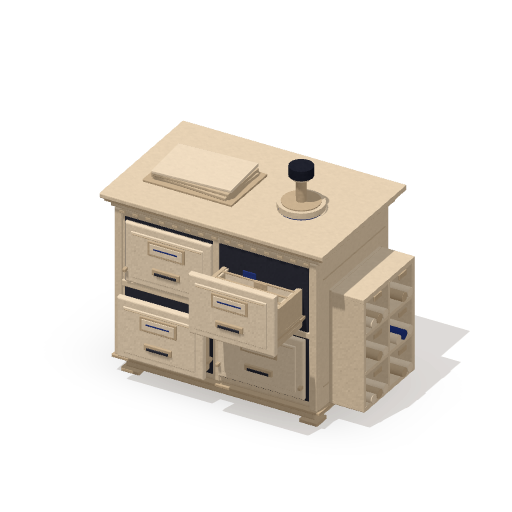
- Consignment requests
- Sales reports
- Returns of unsold items
- Stock counts
Its service exposes the operations used by the rest of the application: create a document, read it, list a store's documents, update it, delete a draft, change its status. MedusaService provides standard model management methods. The module adds its own rules: a cancelled request, for example, can no longer be approved.
Workflows to orchestrate each operation
Every piece of information now has its place. We still need to make them change together, because one brand action often affects several modules. Sending consignment products, for example, advances the request in the consignment module, creates a shipment in Fulfillment and moves quantities in Inventory. A workflow coordinates these changes: it calls each module's operations in order, and each module applies its own rules.
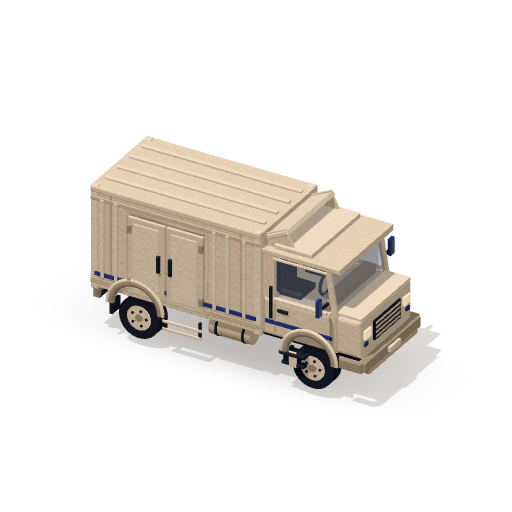
While the brand and store are discussing, only the request changes. Creating, revising, approving or cancelling it neither reserves nor moves any stock. Once the request is approved, the brand can prepare the shipment. The workflow then creates the shipment in Fulfillment and reserves the quantities at the warehouse so they cannot be sent elsewhere. On dispatch, it removes these quantities from warehouse stock and releases the reservation. When the brand confirms receipt in Admin, the workflow dates the delivery in Fulfillment and adds the quantities to the store's stock.
Between dispatch and receipt, the products have left warehouse stock but do not yet appear in the store's stock. To find quantities in transit, the brand adds up those in shipments dispatched but not yet received. This calculation is enough because, in this case, every shipment is received in full.
| Event | Warehouse | In transitcalculated | Store |
|---|---|---|---|
| Request approved | 12 | 0 | 0 |
| Shipment preparation | 12of which 12 reserved | 0 | 0 |
| Dispatch | 0 | 12 | 0 |
| Receipt | 0 | 0 | 12 |
Sales follow a different path: the products have already been delivered to the store, then sold to its customers. When the brand approves a report, the workflow removes sold quantities from the store's stock and records these sales in Order. This workflow creates no new shipment and removes the stock only once.
Sales report approval workflow
-
Consignment
-
Inventory
-
Order
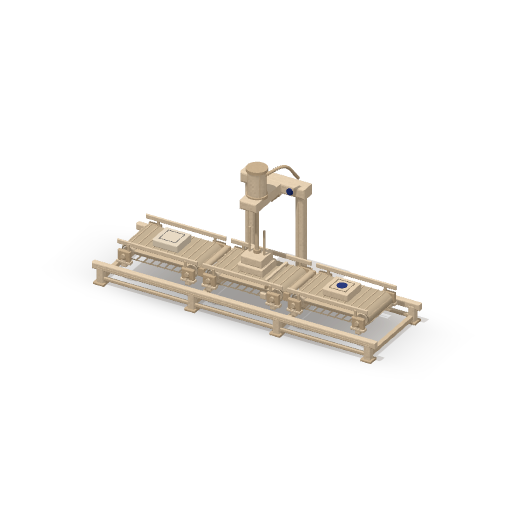
Returns of unsold items follow the reverse journey. Their transport is recorded in Fulfillment as a shipment from the store to the warehouse, even if they combine products received in several shipments. On dispatch, the quantities leave the store's stock. On receipt, they enter warehouse stock.
One return for several shipments
Two shipments go from the warehouse to the store; a single return of unsold items goes from the store to the warehouse.
Warehouse
Store
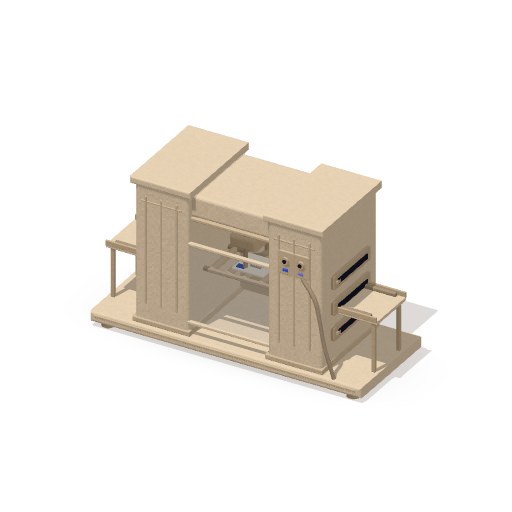
A stock count checks the store's stock, but submitting it does not change stock. The workflow compares counted quantities with expected stock on the count date and highlights discrepancies. A discrepancy is not necessarily a loss: sales for the period may not yet have been reported. The brand therefore first checks whether reports are missing for this period. If they are, it processes them before deciding on an adjustment. The count keeps its initial findings, date and the reason retained. If a discrepancy remains after this processing, the brand decides whether to adjust stock. Only then does it give a reason for the adjustment and approve it, after which the workflow changes the store's stock.
Examining a stock count discrepancy
-
Discrepancy identified
-
Check reports
-
Human decision
- Stock unchanged
- Adjustment justified and approved
An action can also be triggered twice or interrupted partway through. Workflows must therefore track movements already performed so that resuming neither removes nor adds the same quantities twice.
Finally, these workflows need to be triggered from an interface. Admin, Medusa's administration interface, calls API routes, and each route triggers a workflow: create a request, prepare a shipment, approve a report. A store-only portal would have its own routes, restricted to each store's data. These routes would call the same workflows.
Two interfaces, the same workflows
Admin uses the Admin API, the optional store portal uses the store API; both call the same consignment workflows.
Using consignment in Medusa Admin
To explore this module, we built an interactive Admin prototype. Its screens, like the stock movements and orders they display, are simulated in the browser with demo data: nothing is connected to the server module yet. One brand, four stores and three companies are enough to explore it.
 Enlarge screenshot
Knowing who needs to act
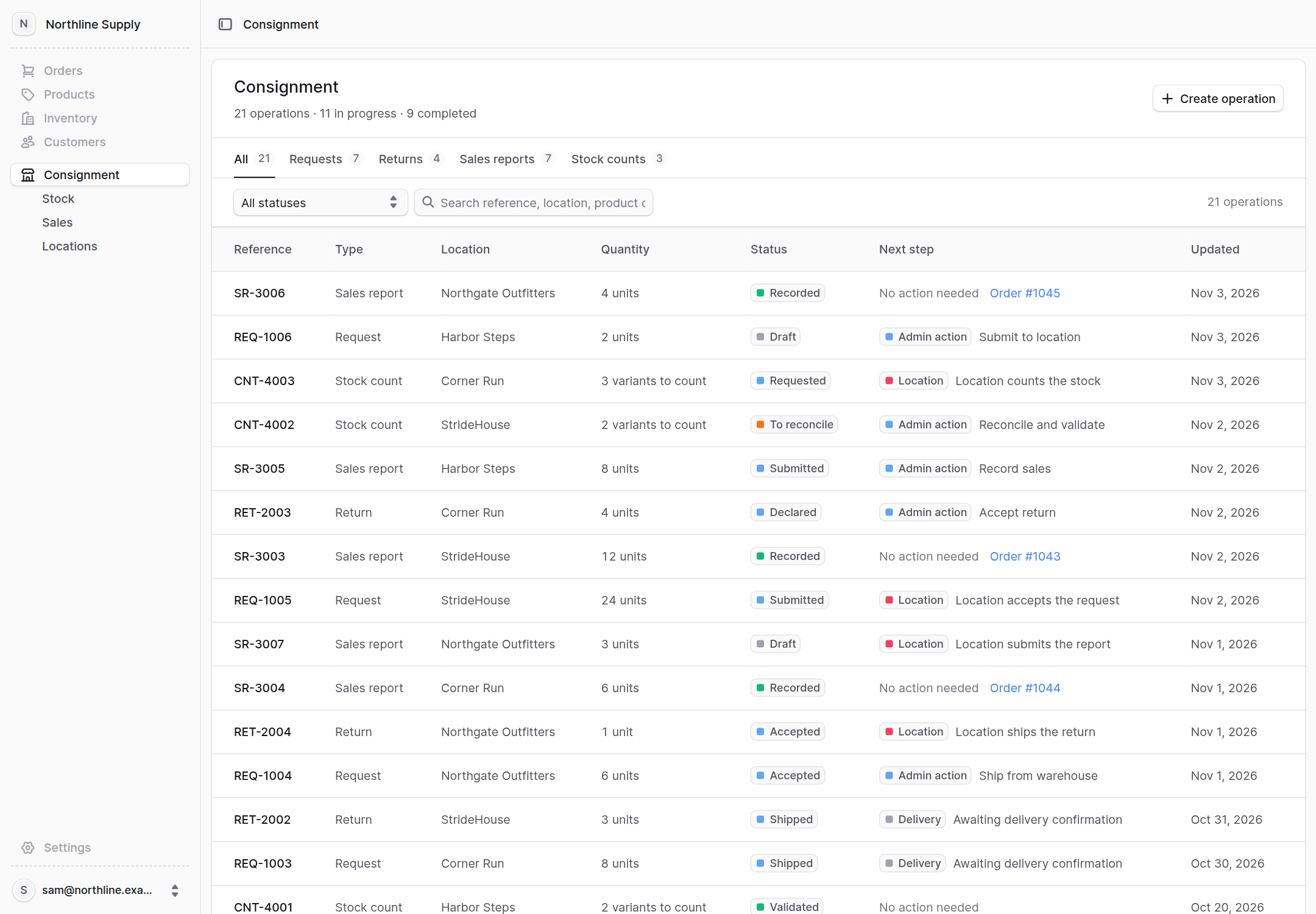
In the Admin menu, clicking Consignment opens the consignment home page; three subentries then lead to Stock, Sales and Locations. The home page brings all operations together in one table, filterable by type and status: consignment requests, returns, sales reports and counts. The Next step column answers the question you ask on arrival: who needs to act? Admin action indicates a task for the brand, Location an action expected from the store, Delivery a delivery to confirm. A completed operation shows No action needed, and a recorded report links directly to its order.
Stock from three angles
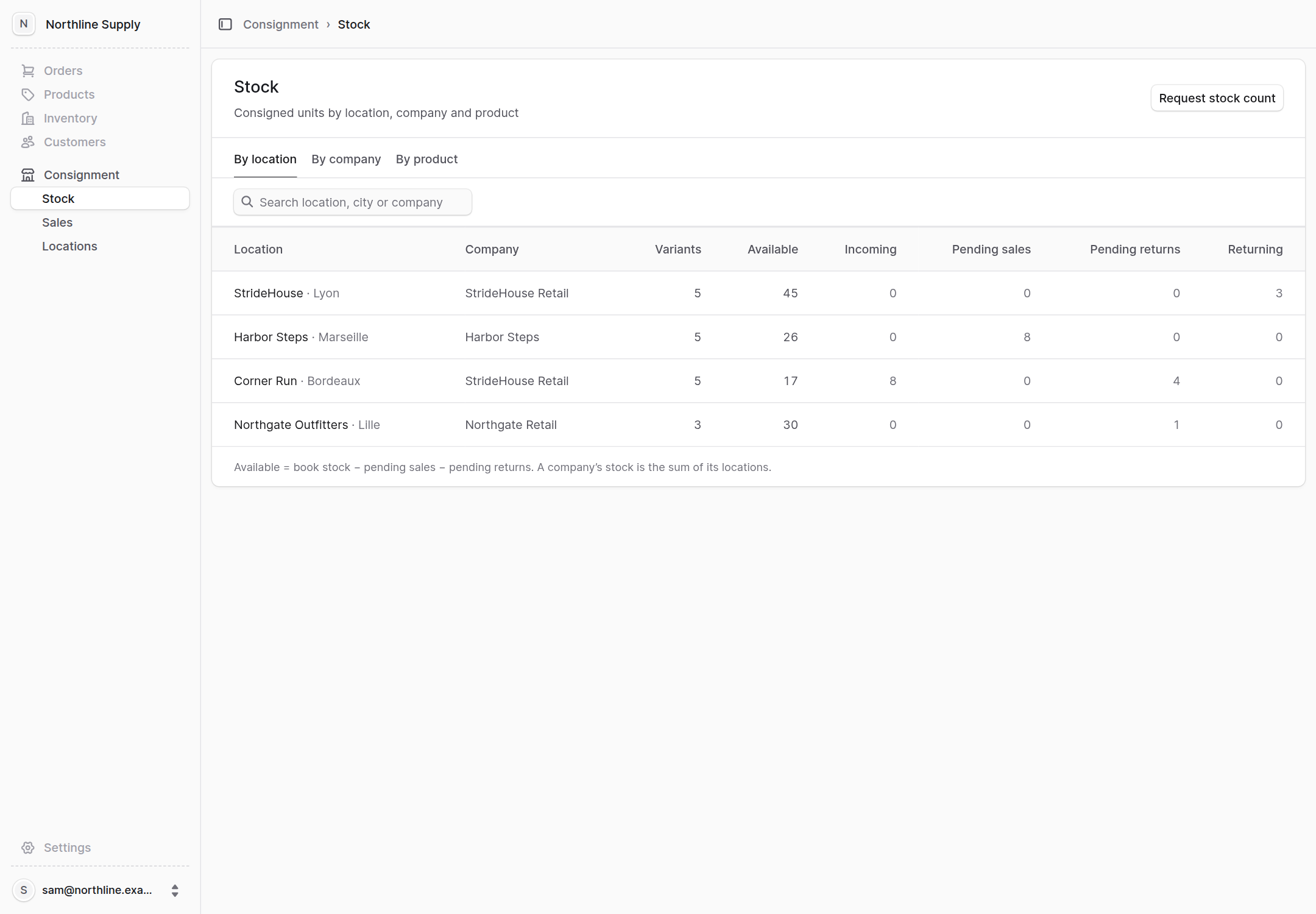
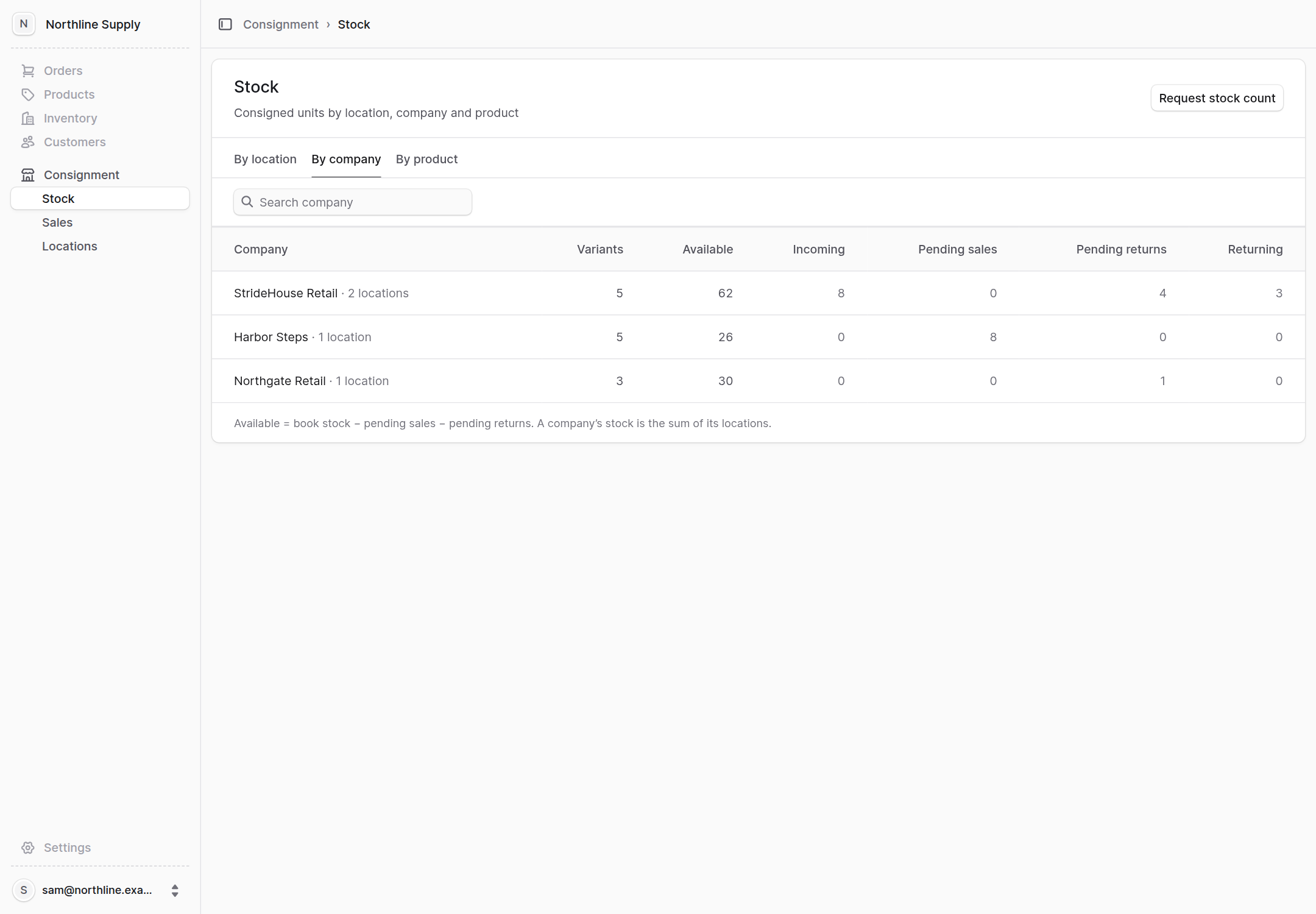
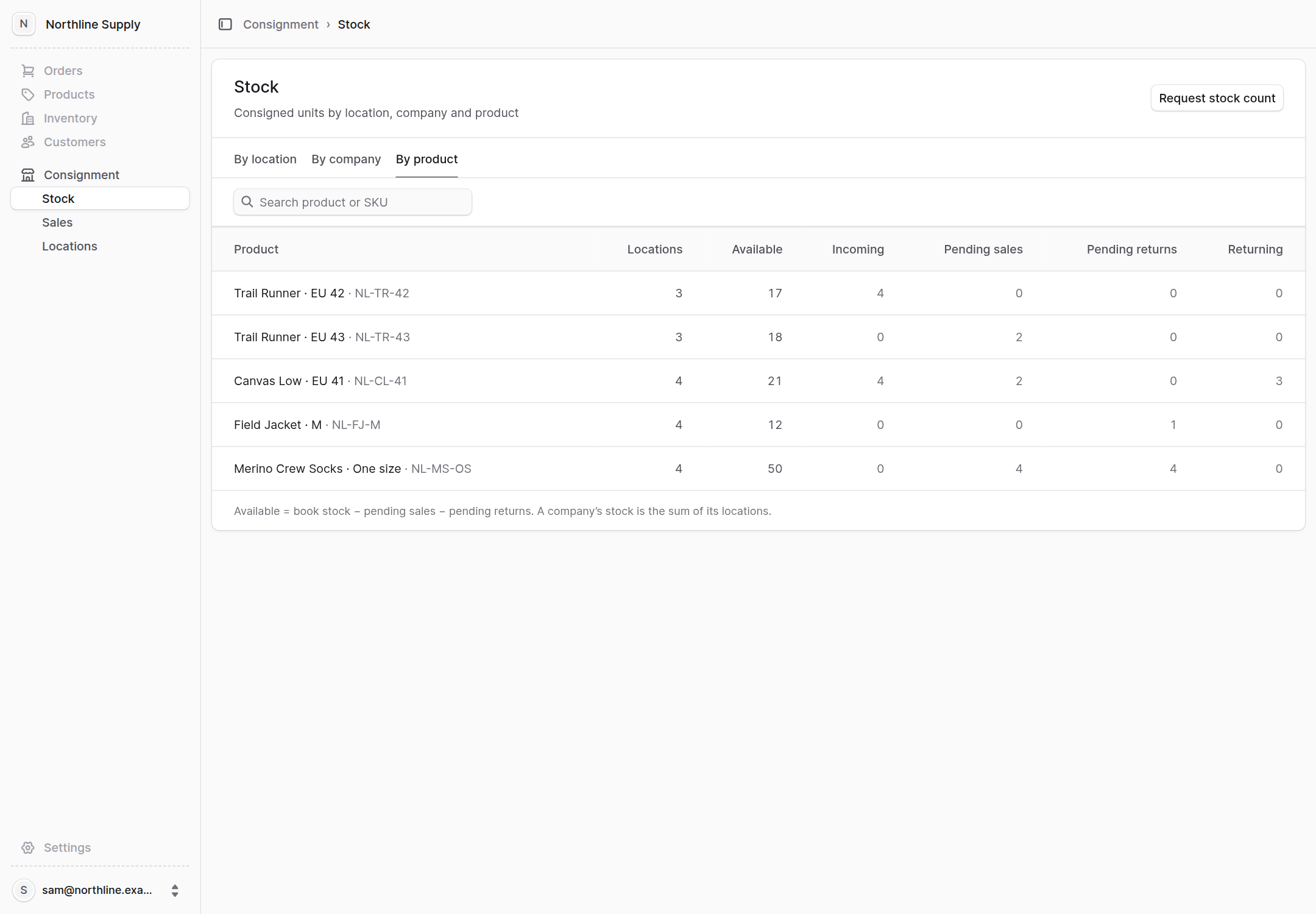
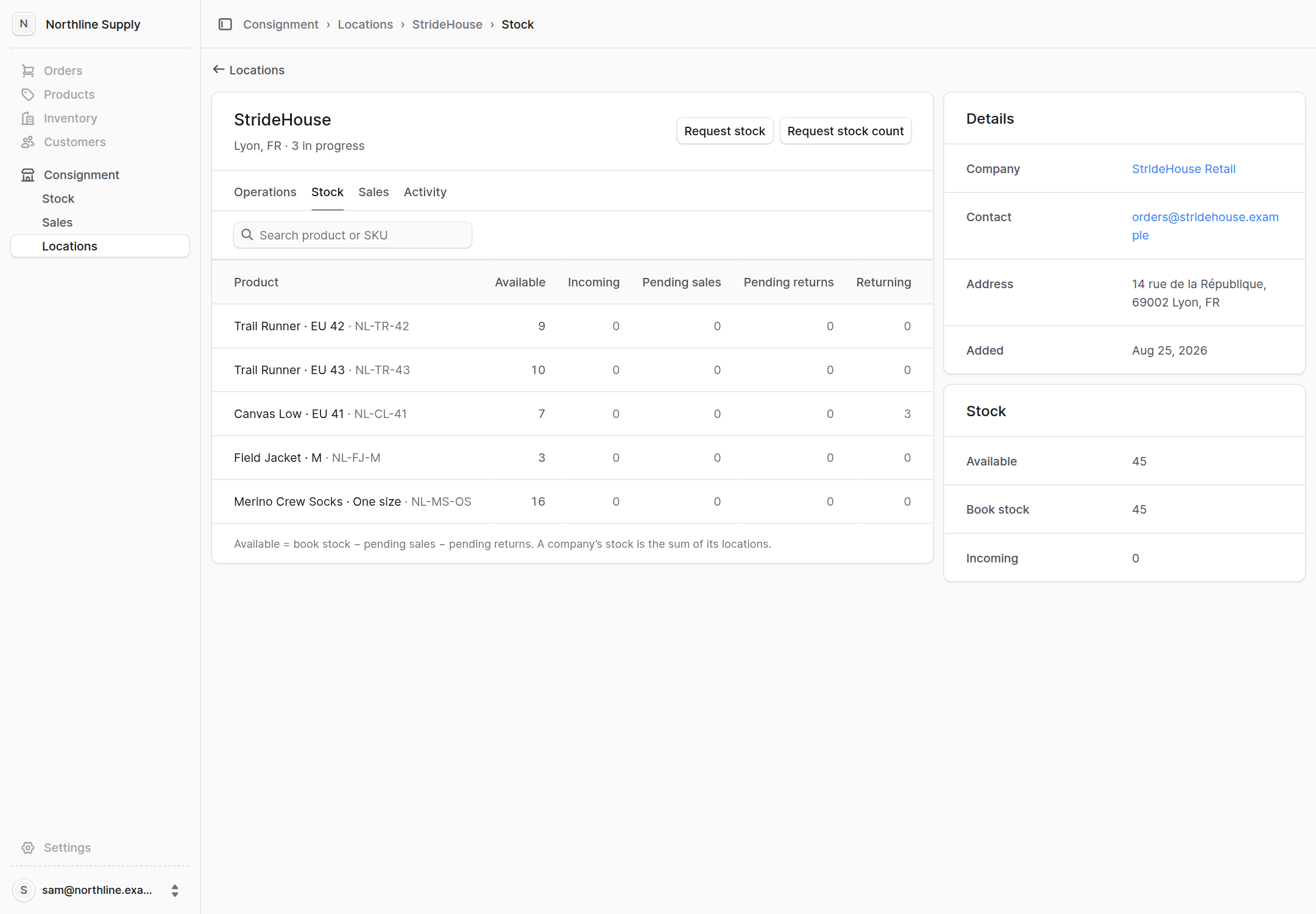
The Stock page shows the same entrusted units by store, company or product. It distinguishes two quantities: book stock (Book stock), still recorded for the store, and available stock (Available), still available to sell. Pending reported sales and announced returns are already excluded from available stock; when the report is recorded or the return dispatched, only book stock decreases. Incoming and Returning show units on their way to the store or back to the warehouse.
 Enlarge screenshot
 Enlarge screenshot
 Enlarge screenshot
One company, two stores
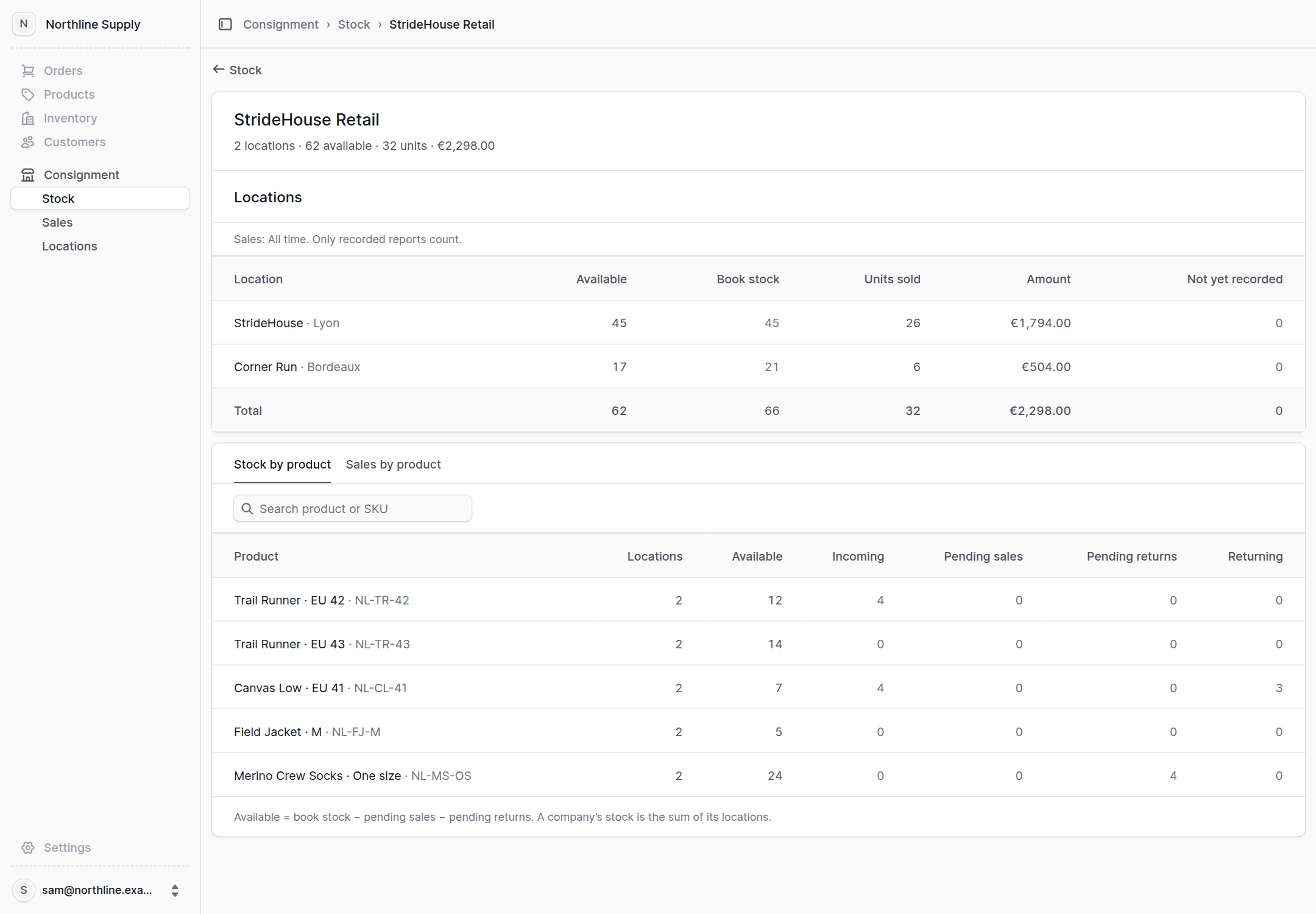
One company can run several stores: StrideHouse Retail operates StrideHouse in Lyon and Corner Run in Bordeaux. Its record, opened from the By company view, lists the two stores with their stock and sales, then their total. Two tabs detail stock and sales by product, and each row leads to the relevant store.
 Enlarge screenshot
A store and its history
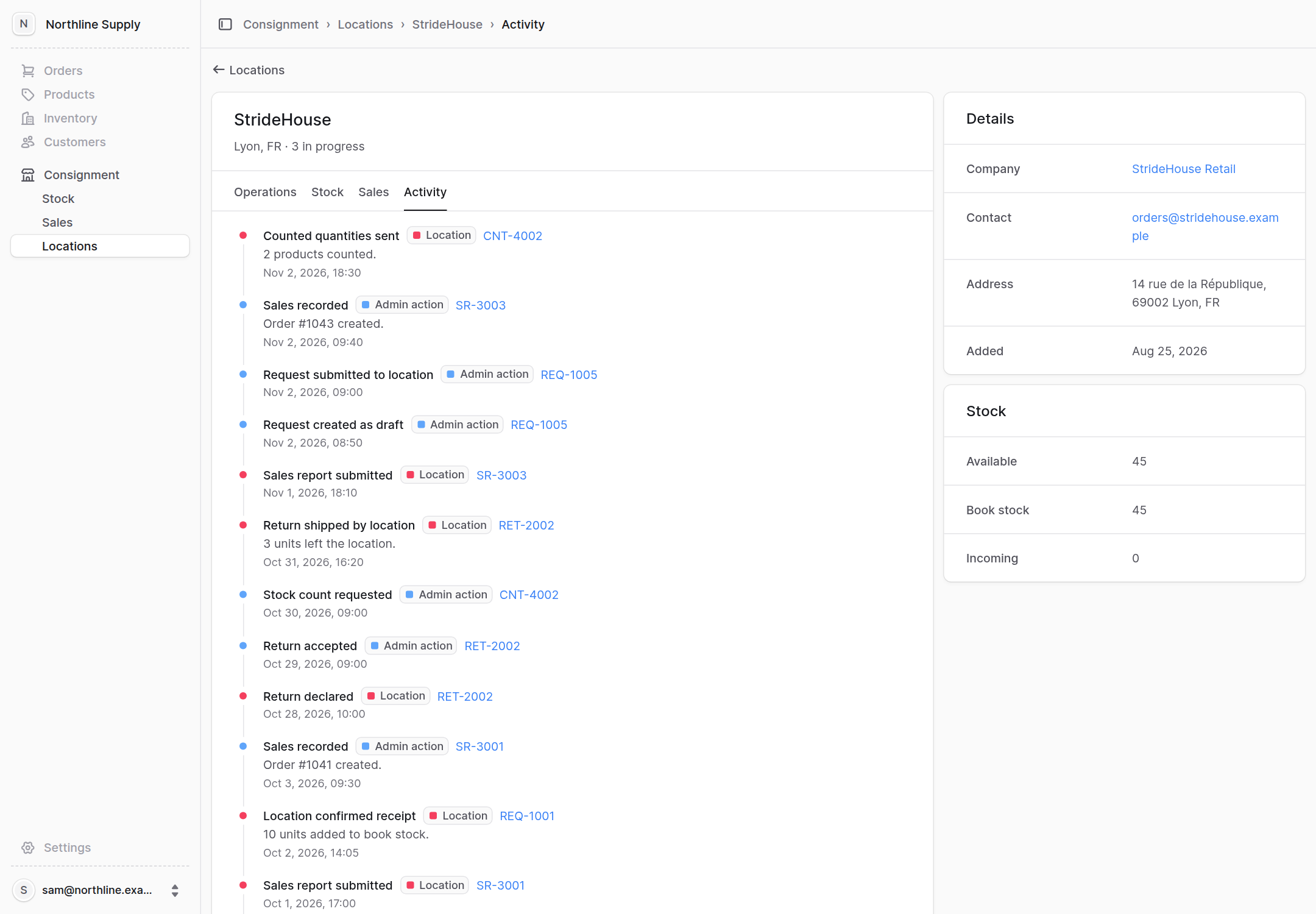
A store's record brings together its operations, stock, sales and activity. The brand can request a new shipment or count there. The Activity tab traces each step with the relevant operation and its source: an action by the brand, or a store confirmation entered in Admin.
 Enlarge screenshot
 Enlarge screenshot
Tracking a consignment
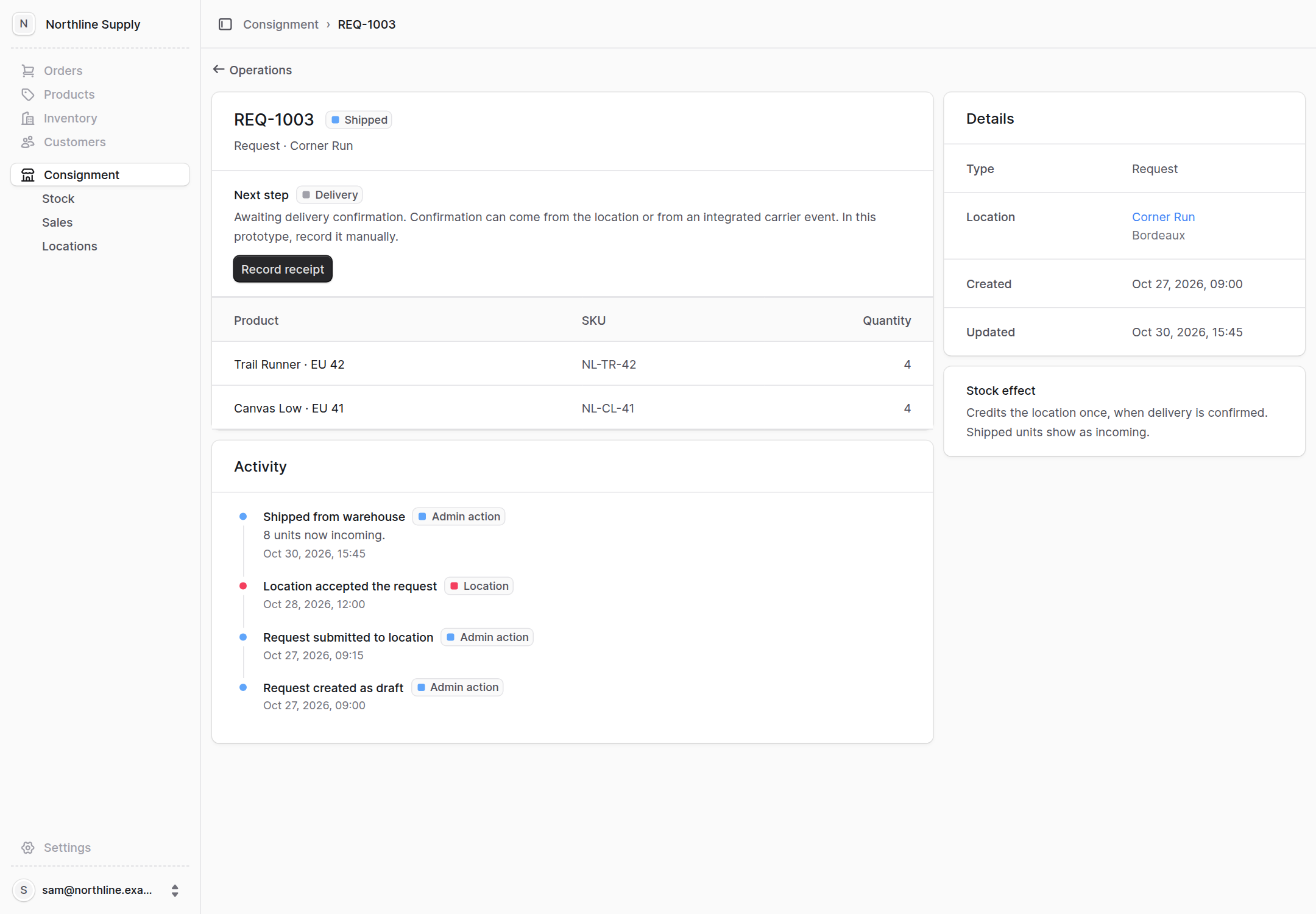
A request starts as a draft with its store and products, then is submitted for the store's agreement. Once the shipment is dispatched from the warehouse, its units appear in Incoming and the page awaits delivery confirmation. The Record receipt button records it: the units then enter the store's stock.
 Enlarge screenshot
From reported sales to orders
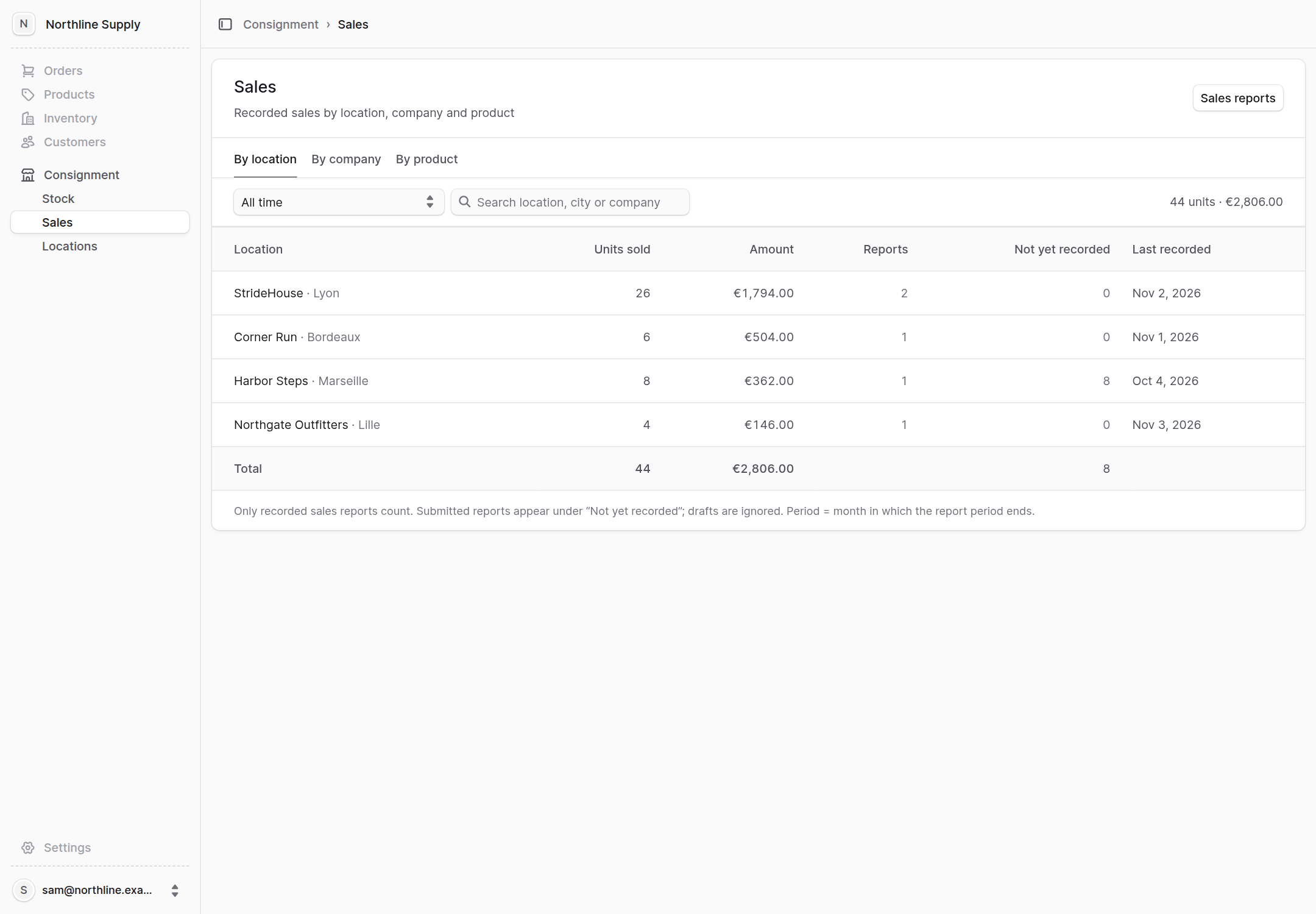
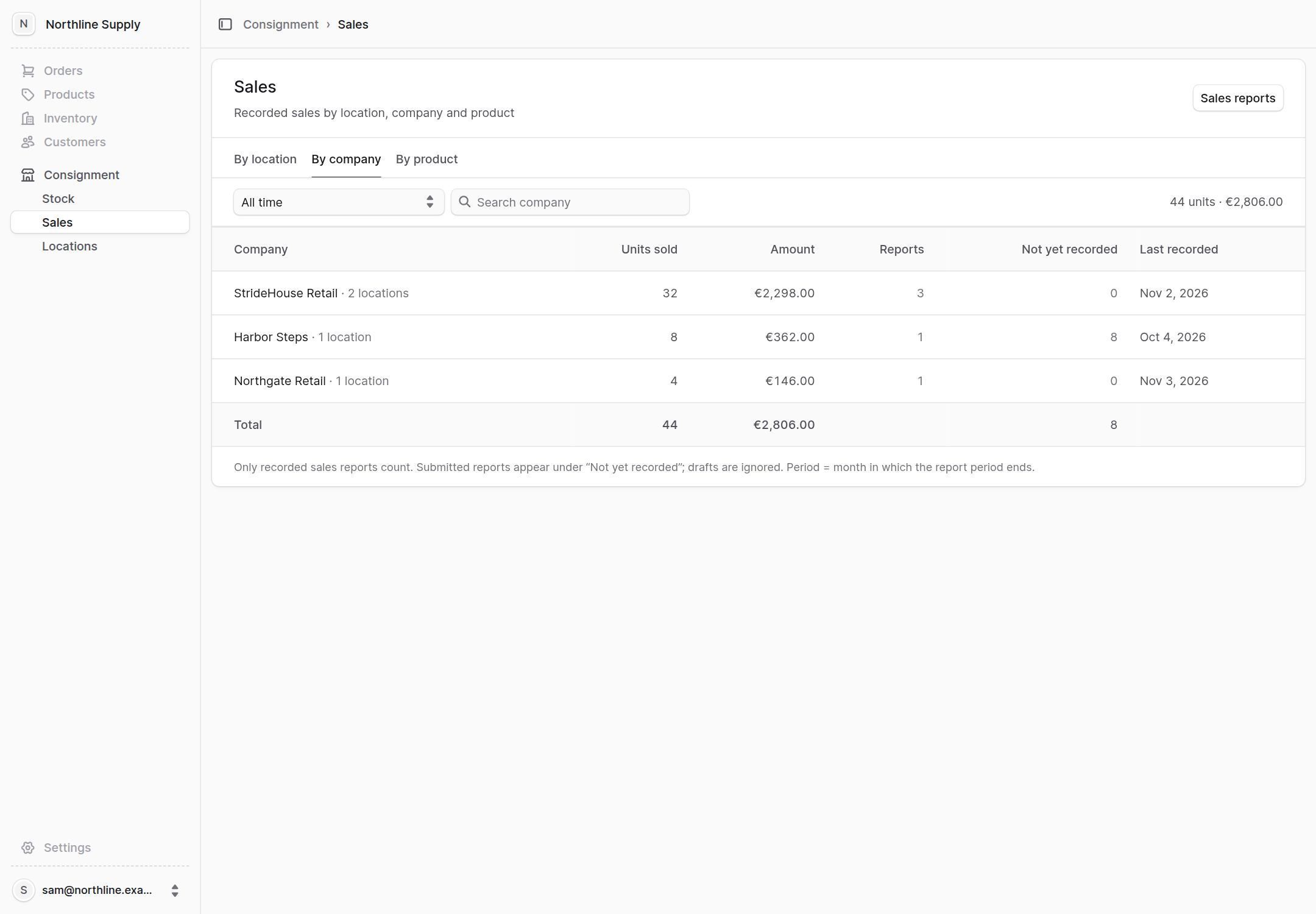
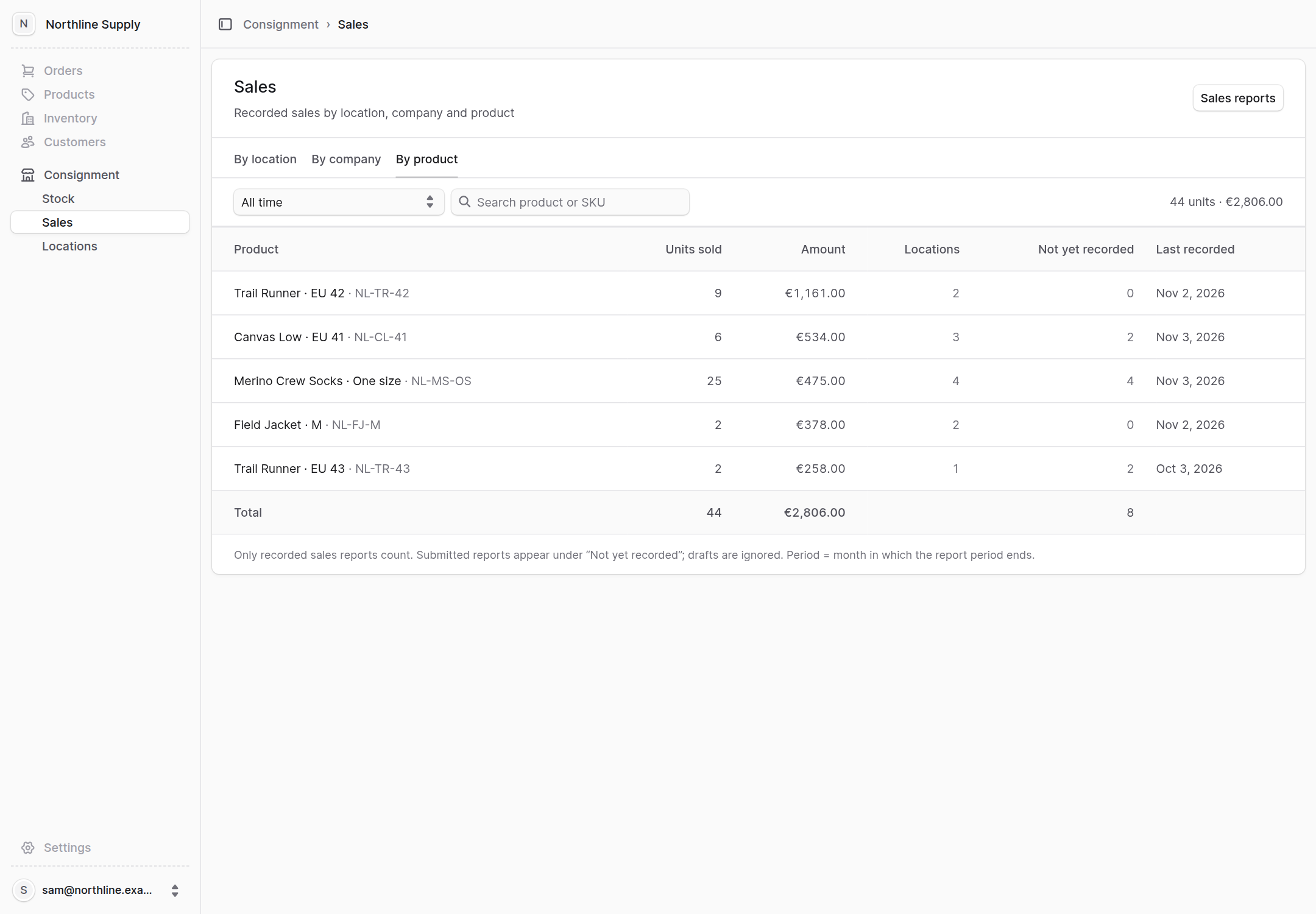
The Sales page uses the same three views as stock, over a chosen period. Only recorded reports count towards the totals. A submitted but not yet recorded report stays separate under Not yet recorded, like the 8 units reported by Harbor Steps; drafts are ignored.
 Enlarge screenshot
 Enlarge screenshot
 Enlarge screenshot
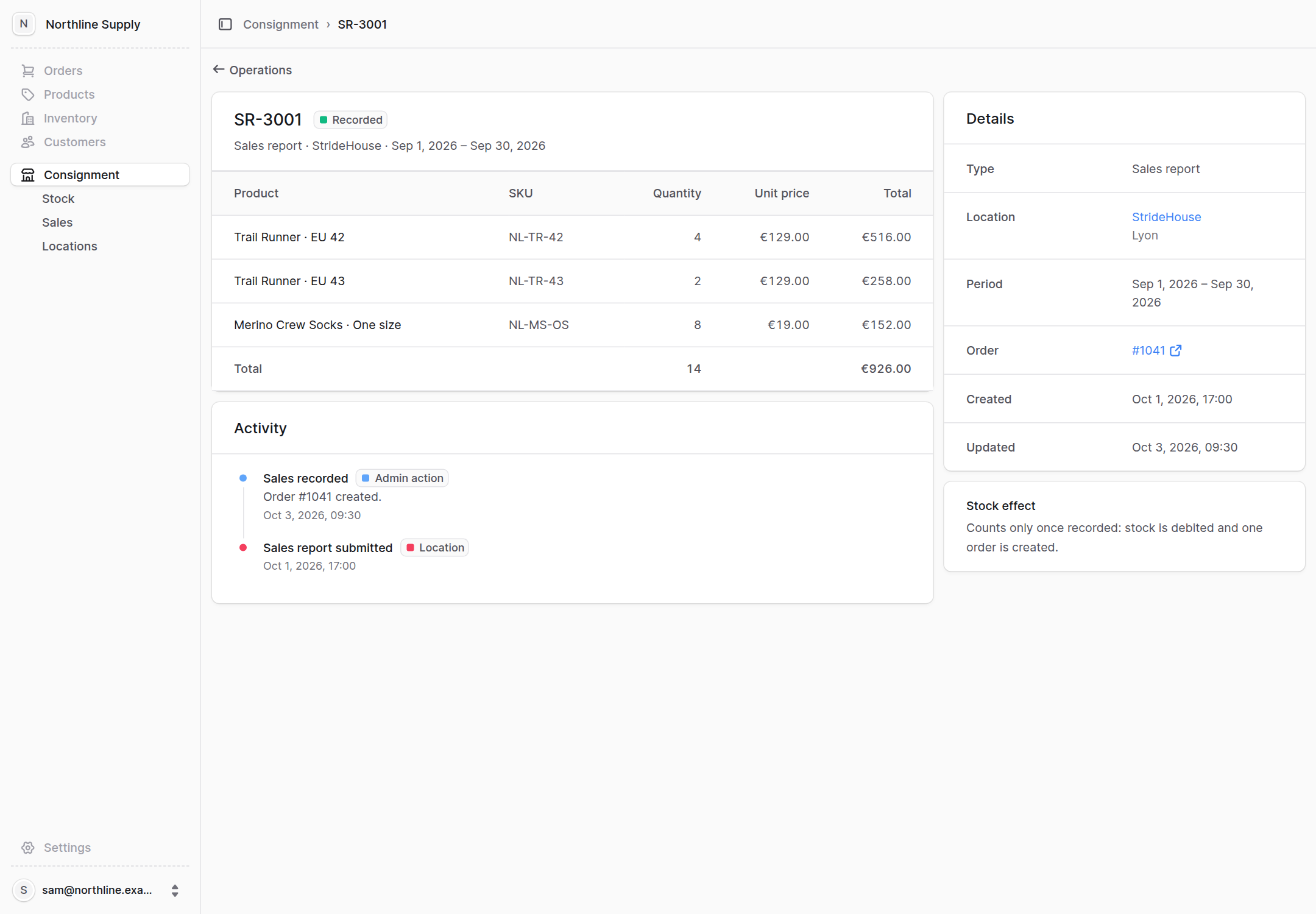
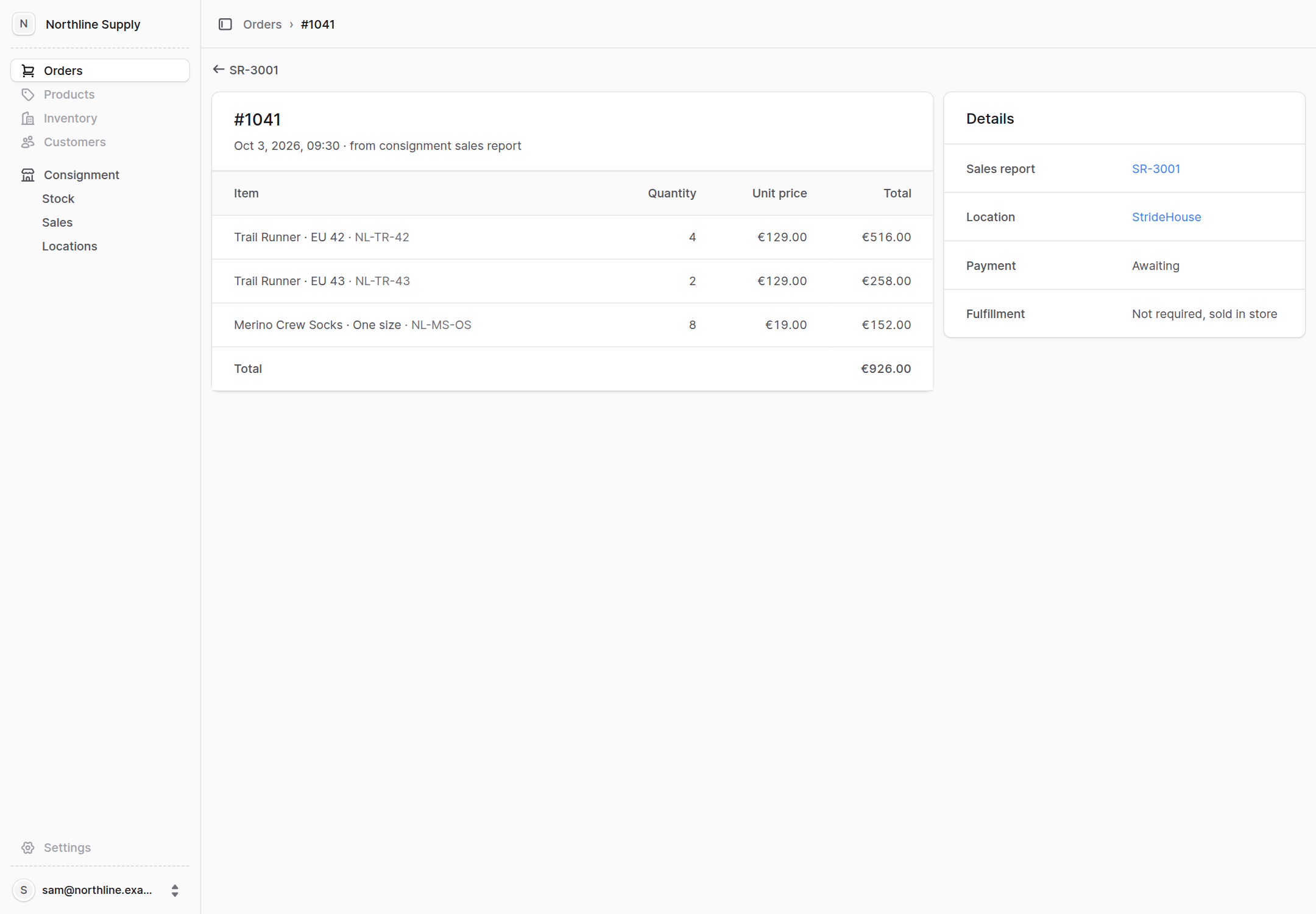
Recording a report decreases the store's stock and creates an order in Order. Report and order remain distinct and link to each other: SR-3001 shows order #1041, which in turn identifies its report, store and the absence of shipping, since the products were sold in-store.
 Enlarge screenshot
 Enlarge screenshot
Returns and counts
A reported return immediately makes its units unavailable for sale. The store then dispatches it, and the warehouse confirms receipt.
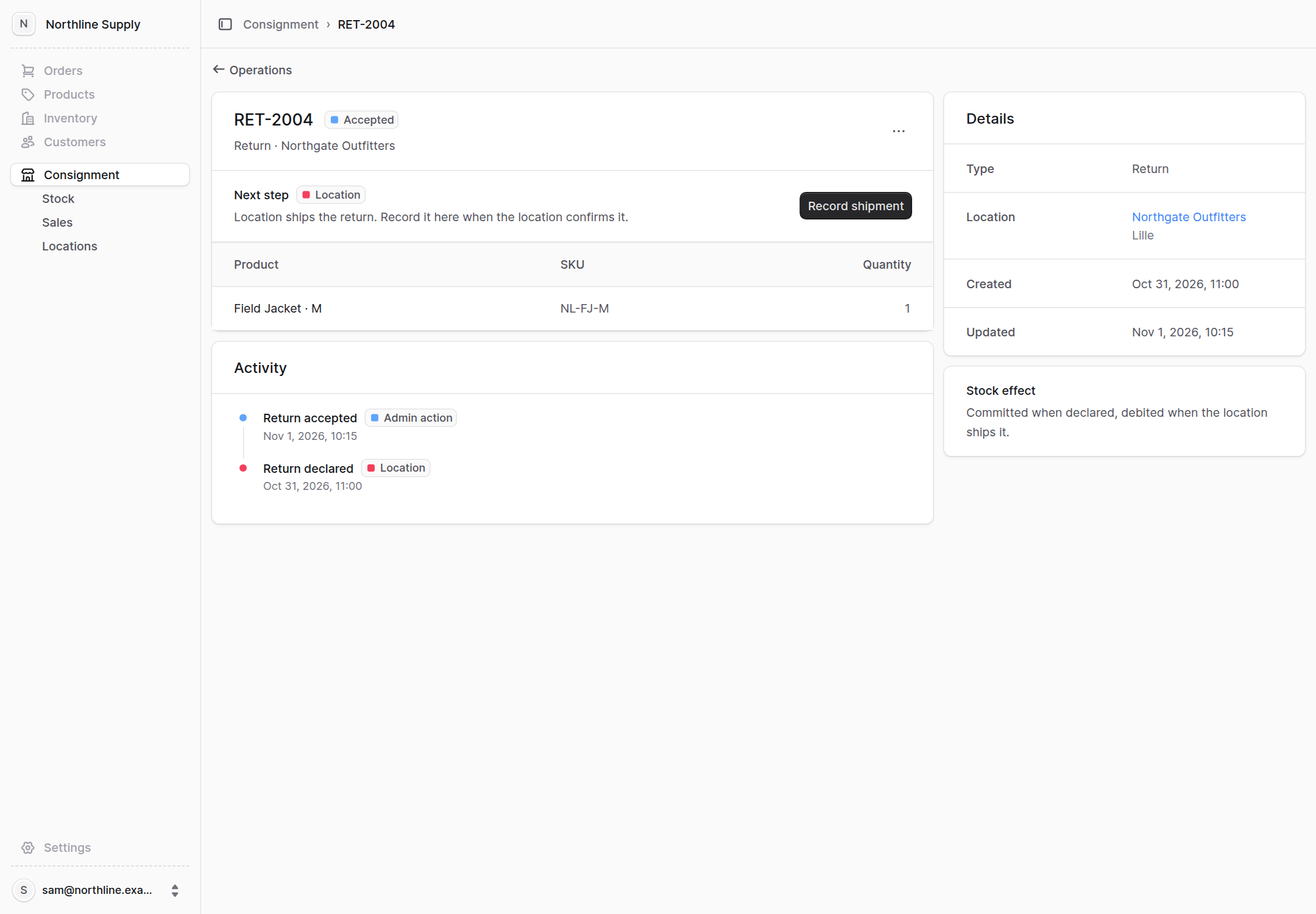 Enlarge screenshot
A count, meanwhile, changes nothing until approved. The page compares expected and counted quantities, and each discrepancy requires a reason selected line by line before approval, which turns it into an adjustment.
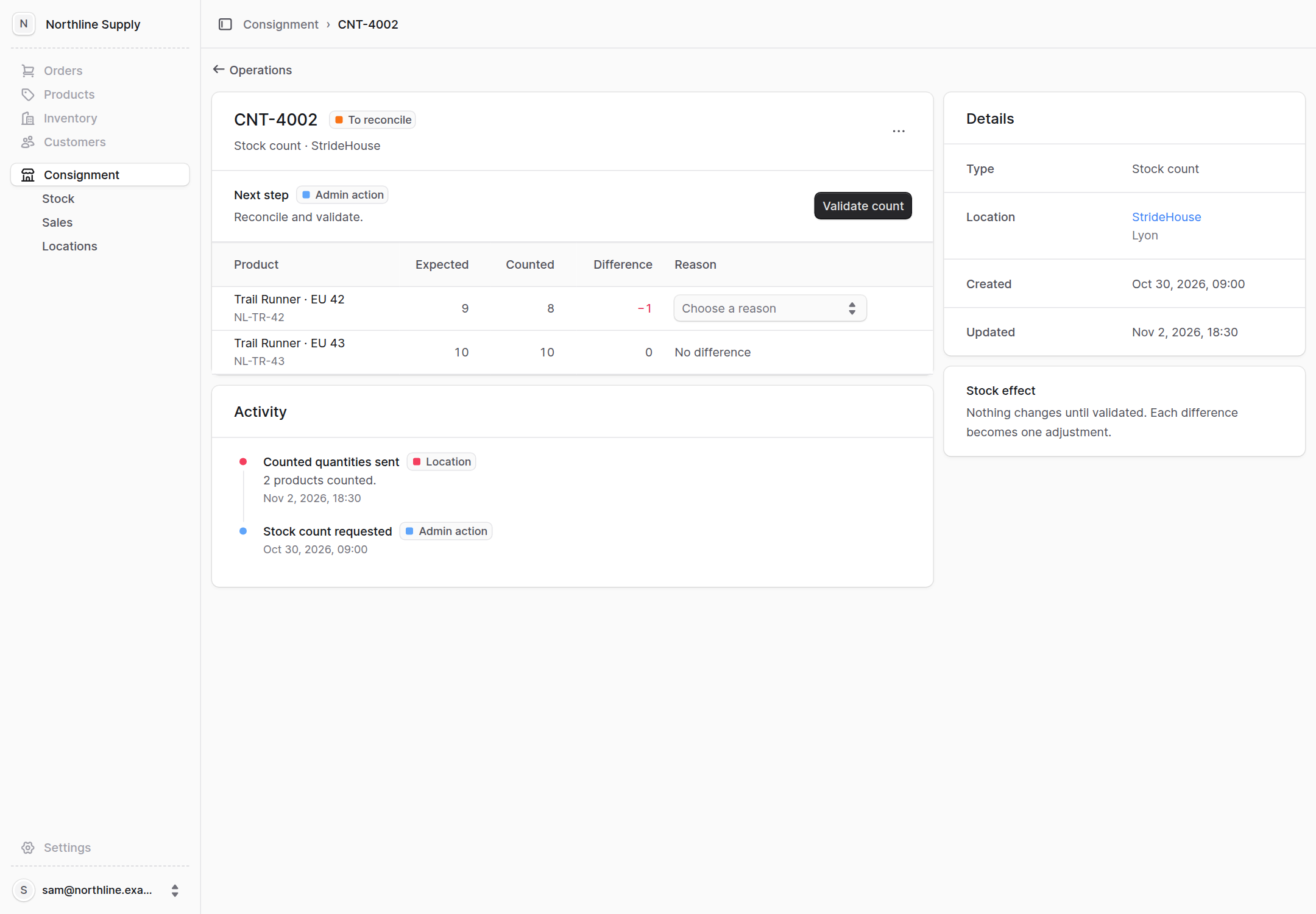 Enlarge screenshot
What consignment reveals about Medusa
This case shows one way to extend Medusa: reuse the existing building blocks and add a module for what belongs to the business domain. Products, stock locations, shipments and orders remain handled by the existing modules. The consignment module models operations with stores, their states and rules, then workflows coordinate each operation between this module and the others, each keeping its own rules.
For the brand, the result is visible in Medusa Admin. It can see what each store holds, what has sold and who needs to act next, and its sales join the orders it already tracks.